 divine
Amazon 2FA Guide for ACO
Amazon 2FA lets you access accounts with Two-Factor Authentication enabled by using the key provided in your Amazon account’s two-factor settings.
You will need to download and use the Authenticator app in order to use this login method.
- Apple:(Click Here)
- Android:(Click Here)
To setup and find your Amazon 2FA authenticator key follow these steps:
Step 1: Sign In to Your Amazon Account
- Go to Amazon and log in
- Open Account & Lists

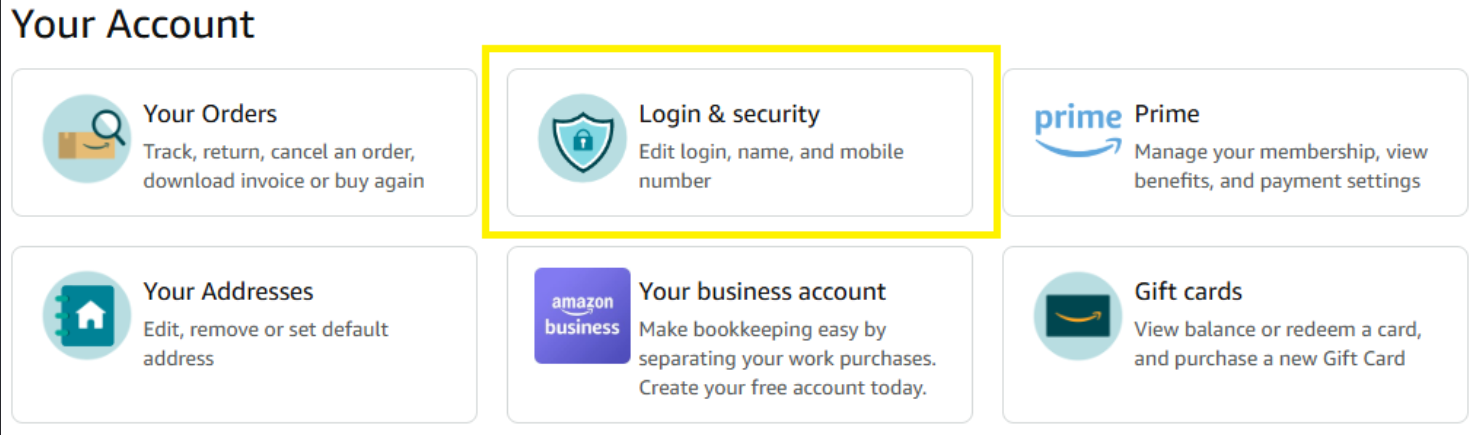
Step 2: Open Login & Security
- Select Account
- Tap or click Login & Security
- Re-enter your password if prompted
Step 3: Enable Two-Step Verification (2FA)
- Find Two-Step Verification (2SV)
- Select Edit or Turn On\

Step 4: Choose Your 2FA Method
You can choose one or more of the following:
- Authenticator App (recommended)
- Google Authenticator
- Authy
- Microsoft Authenticator
- SMS (Text Message)
- Receive a one-time code via text
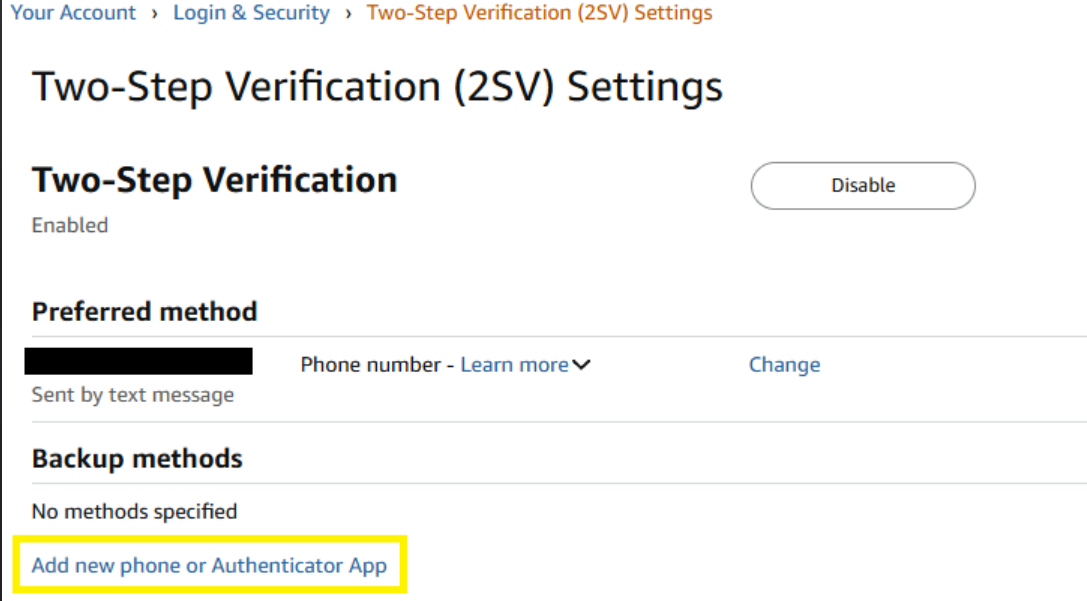

Click the "Cant scan the barcode?" dropdown\
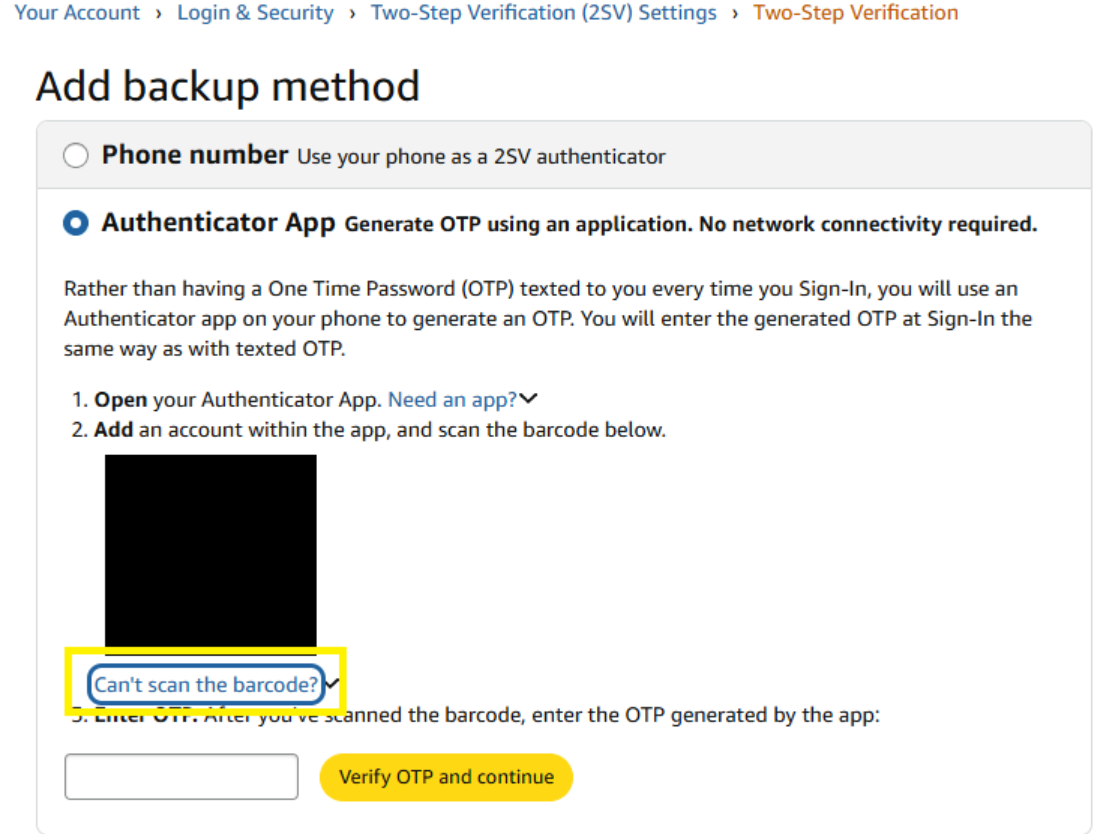
Copy the authenticator key (it will be bold and about 52 characters long) and store it in a safe place: you’ll need it later. VIDEO OVERVIEW
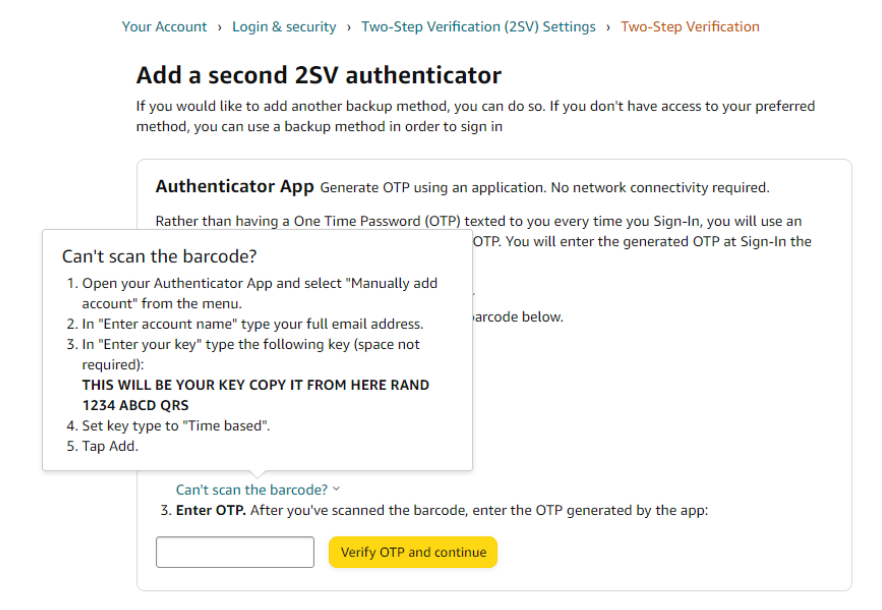
Step 5: Verify & Confirm
- Scan the QR code using an authenticator app on your phone (Google Authenticator is recommended). Once scanned, your app will generate a 6-digit code. Enter this code into the OTP field on Amazon.com, then click Verify OTP and Continue to complete the setup.
✅ Two-Factor Authentication is now enabled
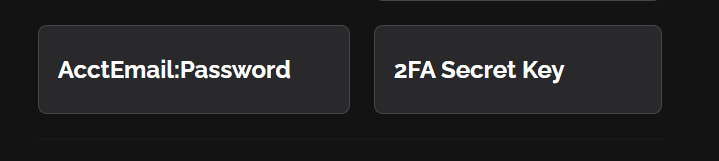
Amazon 2FA DIVINE INPUT
- Format = xxxx xxxx xxxx xxxx xxxx xxxx xxxx xxxx xxxx xxxx xxxx xxxx xxxx
- The password never has a - in it, so don't enter it that way\
\
Was this helpful?